
Here, we will learn how to install and configure xolotl. There are two ways to install xolotl, based on your level of expertise:
| Method | Download a MATLAB toolbox | Use git |
|---|---|---|
| Who should do this | Everyone | Developers, advanced users |
| Ease | Very easy | Some configuration needed |
| OS support | All common OSes | Probably won't work on Windows |
Installing using a MATLAB toolbox
xolotl is available as a MATLAB toolbox. Click here to download it, and drag the downloaded file onto your MATLAB terminal to install it. You should get a popup that looks like this:
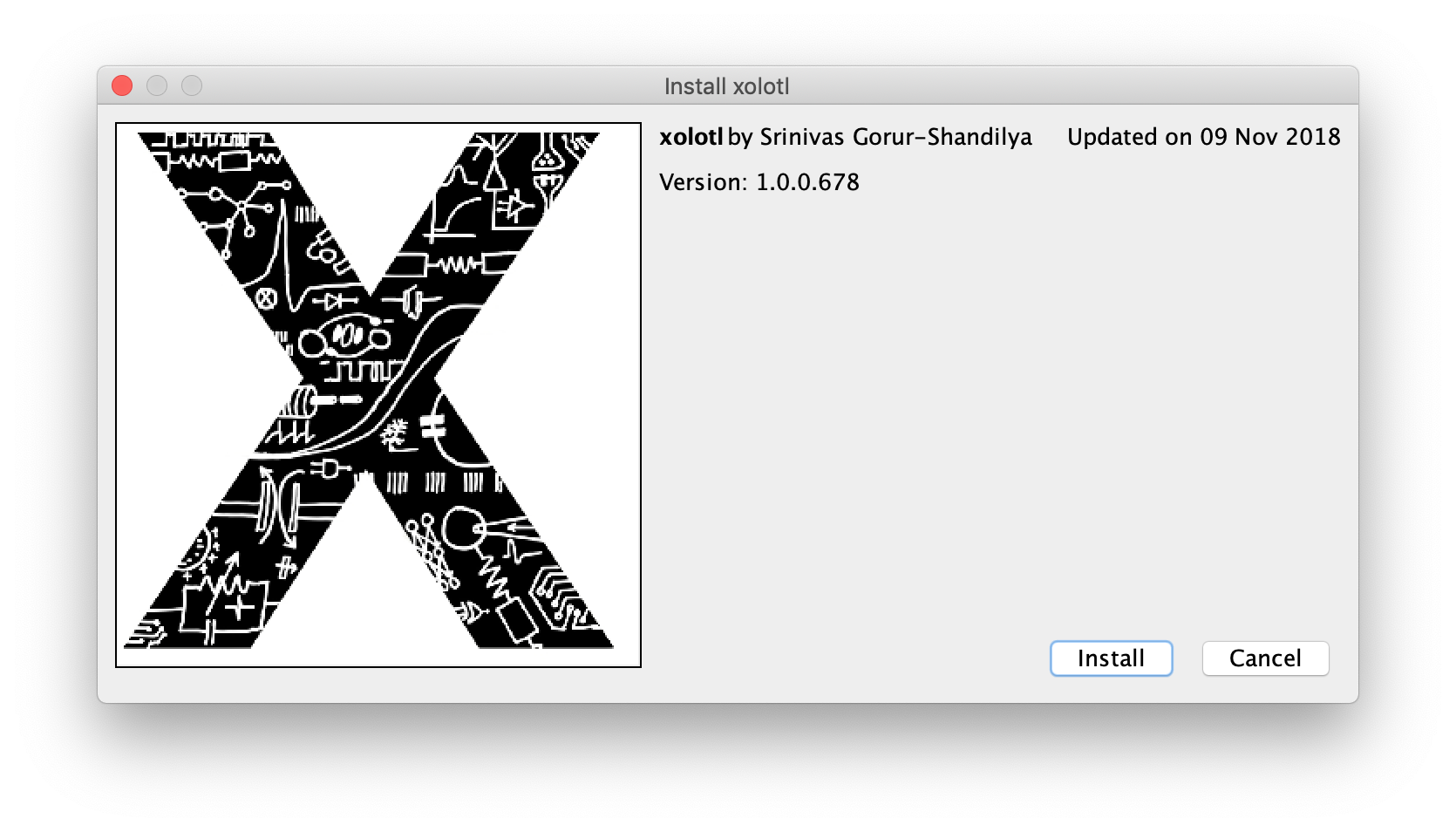
Click on the "Install" button and you should be all set!
Install using git
If you are comfortable with git, you can clone all the code and dependencies yourself:
git clone https://github.com/sg-s/srinivas.gs_mtools
git clone https://github.com/sg-s/puppeteer
git clone https://github.com/sg-s/xolotl
git clone https://github.com/sg-s/cpplab
You will have to manually set your MATLAB paths. Make sure you add the main folder for puppeteer, cpplab, and xolotl, and all subfolders of srinivas.gs_mtools/src.
Updating
In most cases, xolotl can update itself to the latest version using ::
xolotl.update()
If you installed using git, xolotl will attempt to do a git pull and update itself. If you installed it as a MATLAB toolbox, xolotl will delete the old toolbox, download the new one, and install that.
Uninstalling
If you installed xolotl as a MATLAB toolbox, you can easily uninstall it using:
xolotl.uninstall()
Note that this doesn't do anything if you installed using git, or if you manually downloaded the files and linked them.
Compilers on GNU/Linux
There are a couple of quirks specific to using the MEX compiler on Linux machines.
MATLABcan be particular about the version ofg++it works with. For best results, use the compiler version recommended byMATLAB.- In addition, it's best to point
MATLABtowards the system compiler, rather than one installed through distributions likeAnaconda. - On certain Linux distributions,
MEXcannot identify the installedg++compiler, even when it exists on your path (e.g.which g++in the terminal works fine). The error looks something like this
  >> !which g++
  /bin/g++
  >> !g++ -dumpversion
  8.1.0
  >> mex -setup C++
  Error using mex
  No supported compiler was found.
MATLAB recommends changing your path so that you default to an older version of g++. This is not strictly necessary. MATLAB can still compile using MEX with newer versions of g++ in most cases. Generally, downgrading to an older version of g++ doesn't solve this problem.
There is a relatively simply fix however. Credit goes to GitHub user bonanza123 for figuring it out.
- First, download the proper version of
gcc/g++as normal. If you use a package manager, there are generally legacy versions undergcc-VERSIONwhereVERSIONis the version number (e.g. 6). You can also find them here. - Second, change the
mex_LANG_glnxa64.xmlspecification file, whereLANGis eitherCorC++. This is typically found at~/.matlab/R2018a/mex_C_glnxa64.xml(whereR2018ais theMATLABversion and we're looking for theClanguage file). - Replace all references to
$GCCwith the path to the soft-link to yourgcccompiler (e.g./usr/bin/gcc-6). If you don't have a soft-link to your compiler set up (i.e.which gccdoesn't tell you the path to the link), then you have to set one up. - Repeat this process for the
mex_C++_glnxa64.xmlfile. It should be in the same location as theC-specific file. SometimesMATLABdoesn't generate theC++.xmlfile, causing a lot of errors. If it doesn't exist, copy theC-specific version of the file, rename it tomex_C++_glnxa64.xmland replace all references togccwithg++so thatMATLABis forced to use the correct compiler.
The problem is fixed if you see something like this in MATLAB:
  >> mex.getCompilerConfigurations('C++')
  ans =

  CompilerConfiguration with properties:

             Name: 'g++'
     Manufacturer: 'GNU'
         Language: 'C++'
          Version: ''
         Location: '/usr/bin/g++-6'
        ShortName: 'g++'
         Priority: 'A'
          Details: [1×1 mex.CompilerConfigurationDetails]
       LinkerName: ''
    LinkerVersion: ''
           MexOpt: '/home/alec/.matlab/R2018a/mex_C++_glnxa64.xml'